









If you’ve ever searched for an app that isn’t available in your region, wanted to try a beta version before its official release, or simply needed to reinstall an app without an internet connection — you’ve probably come across the term APK. This APKGuide is your one-stop resource for understanding exactly what APK files are, how to find and install them safely, what risks to watch out for, and how to get the most out of Android’s flexible app ecosystem.
Whether you’re a first-time Android user or a power user looking to sideload apps with confidence, this guide covers everything you need — from the basics to advanced tips that even most tech blogs miss.
What Is an APK File?
APK stands for Android Package Kit. It is the file format that Android uses to distribute and install applications — think of it as the Android equivalent of a .exe file on Windows or a .dmg file on macOS.
Every app you install from the Google Play Store arrives as an APK file behind the scenes. The difference is that the Play Store handles everything automatically. When you download an APK manually, you’re taking control of that process yourself.
APK files carry the .apk file extension and can be downloaded from the internet, shared between devices via Bluetooth or USB, or distributed directly by developers.
The Structure of an APK File
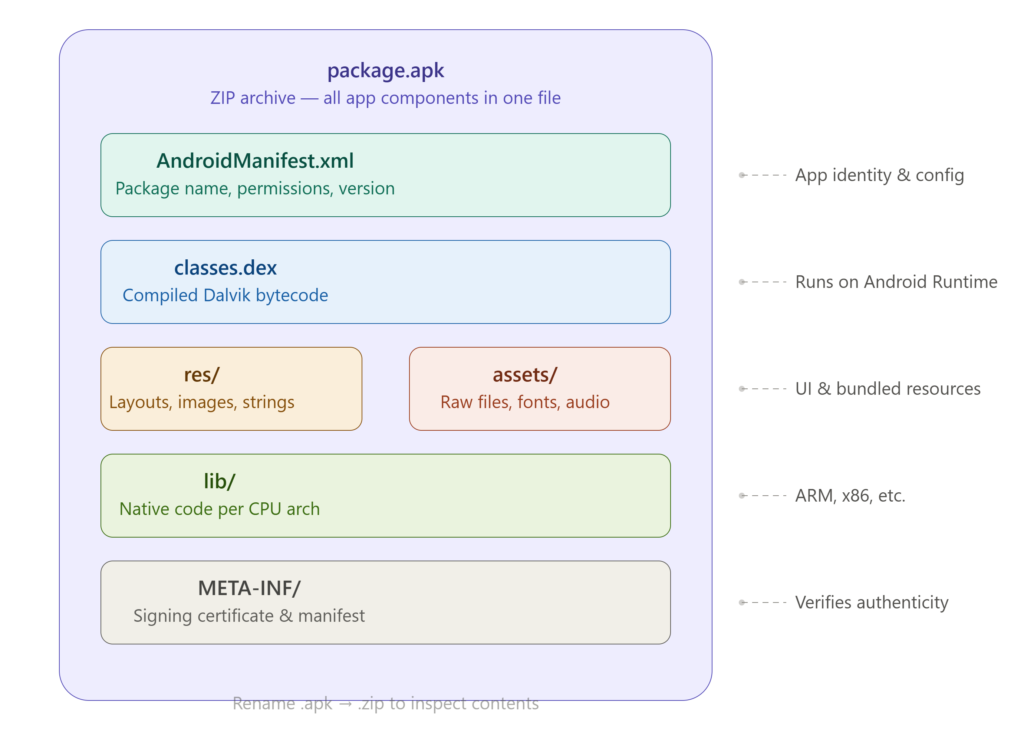
An APK is actually a compressed ZIP archive in disguise. If you rename one to .zip and open it, you’ll find several key components inside:
- AndroidManifest.xml — Declares the app’s name, version, permissions, and supported Android versions.
- classes.dex — The compiled app code (in Dalvik Executable format) that the Android Runtime executes.
- res/ — All resource files such as layouts, images, strings, and drawables.
- assets/ — Raw files the app bundles and accesses at runtime (fonts, audio, databases).
- lib/ — Native compiled code for specific CPU architectures (ARM, x86, etc.).
- META-INF/ — Contains the app’s signing certificate, which verifies its authenticity.
Understanding this structure helps you appreciate why APK verification matters. A tampered APK will typically have a mismatched or missing signing certificate.
How APK Files Work — Inside the Package
When Android installs an APK, the operating system performs several steps automatically:
- Signature Verification — Android checks the developer’s cryptographic signature to confirm the file hasn’t been altered.
- Permission Review — The system reads the
AndroidManifest.xmlto know what device resources the app will access. - File Extraction — App files are extracted to the device’s internal storage under
/data/app/. - Optimization — Android converts the
.dexbytecode into optimized format (OAT/ART) for faster performance on your specific device. - Icon Registration — The app icon and name are added to your launcher.
This process happens in seconds, but each step is a checkpoint that can catch a malicious or incompatible app — which is exactly why you should only install APKs from trustworthy sources.
APK vs. Google Play Store: Key Differences
Understanding the difference between sideloading an APK and using the official Play Store helps you make informed choices.
| Feature | Google Play Store | Manual APK |
|---|---|---|
| Security Scanning | Automatic (Play Protect) | Manual — your responsibility |
| Updates | Automatic | Manual or in-app |
| Region Availability | Sometimes restricted | Globally accessible |
| Beta Access | Limited (opt-in programs) | Freely available |
| Verification | Developer identity verified | Varies by source |
| Refund Policy | 2-hour window | None (unless from dev) |
| Permissions Review | Before install | Before install |
| Risk Level | Low | Moderate (source-dependent) |
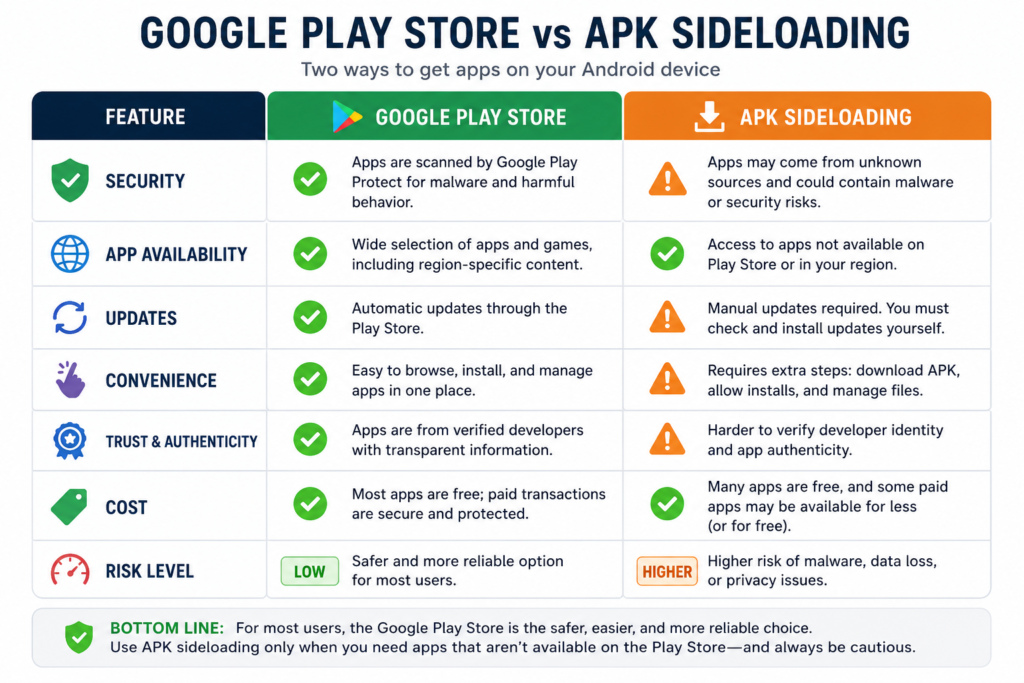
The Play Store isn’t always the better option — regional restrictions, app removals, and corporate content policies have all pushed legitimate users toward APKs at various points.
Legitimate Reasons to Use APK Files
Not everyone downloading APKs is trying to pirate software. In fact, the vast majority of APK use cases are completely legitimate. Here are the most common:
1. Accessing Region-Locked Apps
Some apps are only available in specific countries on the Play Store. Users in other regions can legally download APKs of apps they’re entitled to use but can’t access through the official store.
2. Testing Beta Versions
Developers frequently release early APKs to gather feedback before a public launch. If you’re part of a testing community or game forum, you might receive direct APK links from the developers themselves.
3. Rolling Back a Bad Update
Sometimes an update breaks functionality you relied on. With an APK archive site, you can download a previous version of an app and install it instead of waiting for the developer to patch the issue.
4. Installing Open-Source Apps
Many open-source apps — including privacy-focused tools — are distributed exclusively via APK on platforms like F-Droid because their developers prefer to bypass the Play Store entirely.
5. Using Apps on Devices Without Play Services
Amazon Fire tablets, older Android TV devices, and many devices sold outside Western markets don’t have the Google Play Store pre-installed. APKs are the primary way users on these devices install software.
6. Enterprise and Enterprise App Distribution
Businesses often distribute internal company apps as APKs directly to employee devices, bypassing the public Play Store entirely for security and control reasons.
How to Safely Download an APK File
Downloading safely is the most critical step. Follow this process every time:
Step 1: Identify a Trusted Source
Only download APKs from well-known, established platforms with transparent ownership and verifiable histories. (See our trusted sources section below.)
Step 2: Verify the App’s Package Name
Every Android app has a unique package name (like com.whatsapp or com.spotify.music). Before downloading, confirm the package name on the source matches the one listed on the developer’s official website or the Google Play Store listing.
Step 3: Check the Version and File Size
Compare the APK version number and file size against the Play Store listing. Significant discrepancies — especially an unusually small file size — can indicate a repackaged or tampered APK.
Step 4: Scan the File Before Installing
Use an antivirus tool or upload the APK to VirusTotal (virustotal.com) before installation. VirusTotal runs the file through over 70 security engines simultaneously and reports any detected threats.
Step 5: Read Permission Requests Carefully
When Android prompts you to review permissions during install, actually read them. A flashlight app requesting access to your contacts and microphone is an immediate red flag.

How to Install an APK on Android — Step-by-Step
Android requires you to explicitly allow “unknown sources” before you can install any APK outside the Play Store. Here’s how to do it on modern Android versions (Android 8.0 and above):
Enabling Unknown Sources (Android 8.0+)
- Download the APK file to your device.
- Open the APK file from your Downloads folder or notification bar.
- Android will ask if you want to allow the app (e.g., your file manager or browser) to install unknown apps.
- Tap Settings in that dialog.
- Toggle Allow from this source to ON.
- Press the back button to return to the install dialog.
- Tap Install.
- Once complete, tap Done or Open to launch the app.
Pro Tip: Android 8+ grants “install unknown apps” permission on a per-app basis rather than system-wide. This is actually safer — it limits which apps can install other apps on your device.
Enabling Unknown Sources (Android 7.0 and below)
- Open Settings.
- Go to Security (or Privacy on some devices).
- Enable Unknown Sources.
- Accept the warning prompt.
- Install your APK normally.
Security Note: On older Android versions, disabling “Unknown Sources” again after installation is strongly recommended.

Installing via ADB (Advanced Users)
If you prefer to install APKs from a computer using Android Debug Bridge:
adb install /path/to/yourapp.apk
ADB installation bypasses the on-device prompt entirely and is useful for developers, testers, and power users managing multiple devices.
Trusted APK Guide Sources and Websites
Not all APK sites are created equal. These are the platforms with established track records for providing clean, verified APKs:
| Platform | Specialty | Verification Method |
|---|---|---|
| APKMirror | Official app versions | Signature verification against Play Store |
| F-Droid | Open-source apps only | Source code reviewed before publishing |
| APKPure | Wide app catalog | Hash verification, user reports |
| Uptodown | Apps + version history | Manual review team |
| APKGuide.net | App reviews and guides | Editorial coverage with install info |
| Official Dev Sites | Direct from source | Developer-signed certificates |
Always cross-reference any APK download with the developer’s official website or social media presence before installing. The safest APK is always one that comes directly from the developer.
APK Scams: How to Spot and Avoid Them
The APK ecosystem attracts bad actors who use the format’s flexibility against unsuspecting users. Knowing how these scams work is your best defense.
The “Free Premium App” Trap
Sites offering paid apps for free are almost always distributing cracked APKs that have been modified. These modifications often include malware that runs silently in the background, harvesting data or displaying hidden ads.
The “Free Game Currency” Scam
One of the most common current scams involves fake APK sites claiming to generate free in-game currency (Robux, V-Bucks, gems). These sites ask users to complete “verification tasks” — surveys, app installs, and notification subscriptions — that generate affiliate revenue for scammers while delivering nothing. No legitimate service can inject currency into a game’s economy from outside the game.
The Fake Updater
Some APKs masquerade as system updates or popular app updates. They’re delivered via pop-up ads on sketchy websites and prompt users with official-looking dialogs. Always update apps through the Play Store or the app itself, never through a website pop-up.
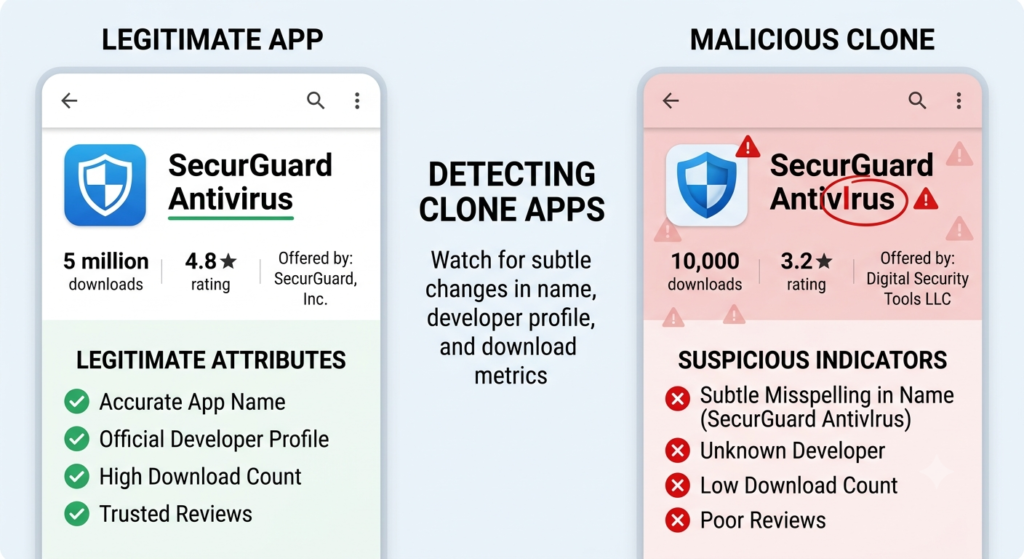
The Clone App
Scammers sometimes create APKs that look identical to popular apps but have slightly different package names. “com.whatsap.messenger” vs “com.whatsapp” — the difference is easy to miss.
Red Flags to Watch For
- Urgent language: “Download NOW before it’s removed!”
- Too good to be true: Free premium apps, unlimited in-game currency
- Excessive permissions: An app requesting SMS, contacts, and location when it clearly doesn’t need them
- No verifiable developer: No official website, no social media presence, no Play Store page
- Mismatched package names: Always verify against the official source
- Requests for personal info: Legitimate apps don’t need your email or phone number just to install
Tips and Best Practices for APK Users
Follow these habits to make your APK experience safer and more productive:
- Scan every APK on VirusTotal before installing, no exceptions.
- Keep a record of where you downloaded each APK in case you need to verify or update it later.
- Follow developers on social media so you receive official APK announcements directly from the source.
- Use a dedicated browser (like Firefox with uBlock Origin) when browsing APK sites to block malicious ads.
- Enable Google Play Protect even when sideloading — it continues scanning installed apps from all sources.
- Check app reviews on external platforms like Reddit or XDA Developers before downloading from a lesser-known site.
- Avoid APKs that require disabling Play Protect — legitimate apps never make this request.
- Back up your current app data before installing an older or beta APK version to avoid losing progress.
Common Mistakes to Avoid
Even experienced Android users slip up occasionally. Here are the pitfalls most worth avoiding:
1. Downloading from the first search result Search engines surface plenty of low-quality APK mirrors. The top result isn’t always the safest one.
2. Ignoring the permission list Most people tap through permissions without reading them. This single habit is responsible for the majority of APK-related malware infections.
3. Leaving “unknown sources” permanently enabled On Android 7 and below, the global toggle should be turned off after installation. On newer versions, review which apps you’ve granted this permission.
4. Installing APKs received in WhatsApp or Telegram Malware spreads readily through messaging apps via shared APK files. Even if the sender is someone you trust, they may not know the file is harmful.
5. Assuming “no antivirus detection” means safe A zero-detection result on VirusTotal is encouraging but not a guarantee. Very new malware often evades detection initially. Combine scanning with source verification.
6. Not checking for official app alternatives Before sideloading, check whether the app is on alternative official stores like the Samsung Galaxy Store, Amazon Appstore, or the developer’s own website with a direct Play Store link.
Advantages and Disadvantages of Using APKs
Advantages
- No regional restrictions — Install apps unavailable in your country’s Play Store
- Access to older versions — Roll back problematic updates instantly
- Early access — Try beta and pre-release versions before the public
- Device flexibility — Install apps on devices without Google Play Services
- Developer freedom — Many innovative apps avoid the Play Store’s restrictions entirely
- Offline distribution — Share apps without internet access
Disadvantages
- Security risk — Tampered APKs can contain malware or spyware
- No automatic updates — You must track and install updates manually
- Potential instability — Unofficial or beta APKs may crash or behave unexpectedly
- Warranty concerns — Some manufacturers and carriers take a dim view of sideloading
- No refund mechanism — You have no recourse if an APK-based purchase doesn’t work out
- Time investment — Vetting sources and scanning files takes more effort than a Play Store tap
Frequently Asked Questions
1. Is downloading APK files legal?
In most countries, downloading APKs is completely legal — provided you own the right to use the app. Downloading a paid app for free from an APK site without purchasing it is piracy, which is illegal. Open-source apps and developer-distributed beta APKs are entirely above board.
2. Can APK files give my phone a virus?
Yes, APK files from untrusted sources can contain malware, adware, spyware, or ransomware. This is why source verification and pre-install scanning are essential steps in any responsible APK workflow.
3. Can I install APKs on an iPhone?
No. APK is an Android-exclusive format. iPhones use a different format called IPA. The iOS ecosystem is also significantly more locked down, making sideloading much harder without specific developer tools.
4. Will installing an APK void my warranty?
Installing APKs alone typically does not void your warranty. However, unlocking your bootloader to install modified system software (which is a different process entirely) can void your warranty with some manufacturers.
5. How do I update an app installed via APK?
You’ll need to download and install the new APK version manually from the same source you used originally. Some APK-installed apps include built-in update checkers that will notify you when a new version is available.
6. What is the difference between APK and XAPK?
An XAPK is an extension of the standard APK format that bundles the base APK with additional OBB data files (used by large games for textures, audio, and other assets). You need a compatible installer like APKPure or XAPK Installer to install XAPK files correctly.
7. Is APKMirror safe to use?
APKMirror is widely regarded as one of the safest APK repositories. It verifies every APK’s cryptographic signature against the one published on the Google Play Store, meaning you get a byte-for-byte match of the official release. However, no source is 100% immune to future compromise — always maintain your scanning habits.
8. Can I install APKs on Android TV or Fire TV?
Yes. Both Android TV and Amazon Fire TV run Android under the hood and support APK sideloading. You can enable developer mode, use ADB over Wi-Fi, or use the Downloader app to fetch and install APKs directly on your TV.
9. Why does my phone say “App not installed” when I try to install an APK?
This error usually means one of the following: the APK is corrupted or incomplete, it’s incompatible with your Android version or CPU architecture, a conflicting version of the same app is already installed, or there isn’t enough storage space on your device.
10. What is the difference between a signed and unsigned APK?
A signed APK has been cryptographically certified by the developer using a private key. Android requires all APKs to be signed before installation. An unsigned APK is a raw, uncertified build — typically used only during development and not suitable for distribution to end users.
Conclusion
APK files are a powerful feature of the Android ecosystem that give users real freedom over their devices. When used carefully and responsibly, they open up a world of apps, games, and tools that simply aren’t available through conventional channels. But that freedom comes with responsibility.
This APKGuide has walked you through everything from the internal anatomy of an APK file to step-by-step installation, scam recognition, and best practices. The key principle that ties everything together is simple: your source determines your risk. A well-verified APK from a reputable platform is no more dangerous than a Play Store download. A random APK from an unverifiable site is an invitation to trouble.
Stick to established sources, scan every file, read every permission prompt, and keep your device’s security tools active. Do those things, and the world of APK sideloading becomes an extremely useful tool rather than a liability.
Key Takeaways
- APK (Android Package Kit) is the file format used to install apps on Android devices — every Play Store app uses one behind the scenes.
- Legitimate use cases for APK files include region unlocking, beta testing, rollbacks, open-source apps, and devices without Play Services.
- Always verify your source — the safest APKs come from developers directly or from signature-verified repositories like APKMirror and F-Droid.
- Scan every APK on VirusTotal before installing, regardless of the source’s reputation.
- Read permission requests carefully — unexpected permissions are the single biggest red flag.
- Free currency scams are rampant in the APK space. No third-party tool can generate in-game currency — these sites exist to harvest data and generate affiliate revenue.
- XAPK files include both an APK and OBB data files — you’ll need a special installer for these.
- Android 8.0+ handles unknown sources permission on a per-app basis, which is safer than the older system-wide toggle.
- Google Play Protect continues to scan all installed apps, including those installed via APK — keep it enabled.
- Never disable Play Protect at the request of an app. Legitimate software never makes this demand.